Skip navigation
  1. Home
  2. SPSS research
  3. Import CSV
Research data

Import CSV data into an SPSS model

Reuse an existing CSV data set by mapping each column to a model question and checking it before export or ordering.
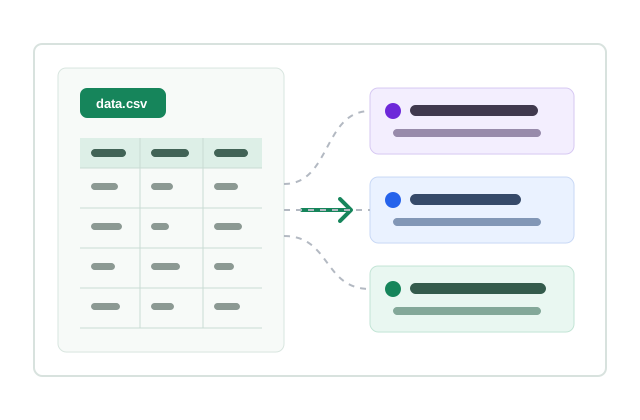
CSV import illustration

Quick facts updated

Format
CSV with a header row
Column matching
Automatic suggestions, manual fixes per column or skip columns
Drop rows
Tick or enter row ranges, e.g. 12, 18-25
See it in the product

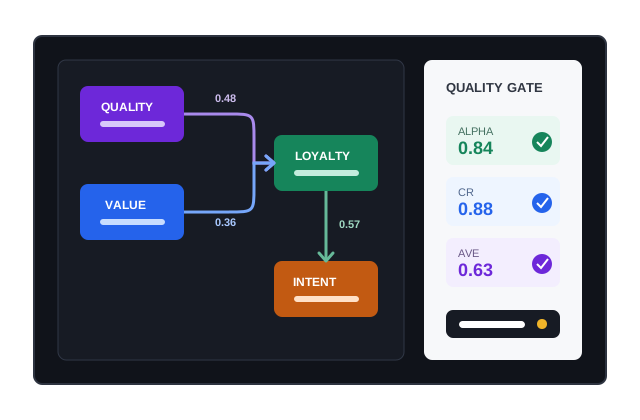
Indicators checked before the data is used

Key information is shown as status, ratios and check results instead of a long block of instructions.

≥ 0,70 Alpha / CR
≥ 0,50 AVE
≤ 5,0 VIF
Import form Configure Check Create order
Visual model of CSV import
Model and indicators shown visually
What it does

Supported format

The current workflow accepts CSV files in the SPSS module. Mappings are suggested by variable code or header; you check each column and drop unneeded rows before confirming.

Reads the header row and data from the CSV file.
Suggests a mapping and lets you assign each column to the right variable or question in the model.
Skip columns, tick preview rows to drop, or enter row numbers and ranges to drop.
Blocks two columns mapped to one variable and rechecks the mapping on the server.
Checks required data, value ranges and hard rules before use.
Keeps imported data separate per form owner.
How it works

How to use CSV import in 3 steps

Every step has a clear status and check.

  1. 1

    Prepare the CSV

    Name the columns clearly and make sure each row is one response.

    CSV import: column names are variable codes like CL1, CL2 or [CL1] Question text
    CSV import: column names are variable codes like CL1, CL2 or [CL1] Question text
  2. 2

    Map the data

    Match CSV columns to the right questions or variables in the model.
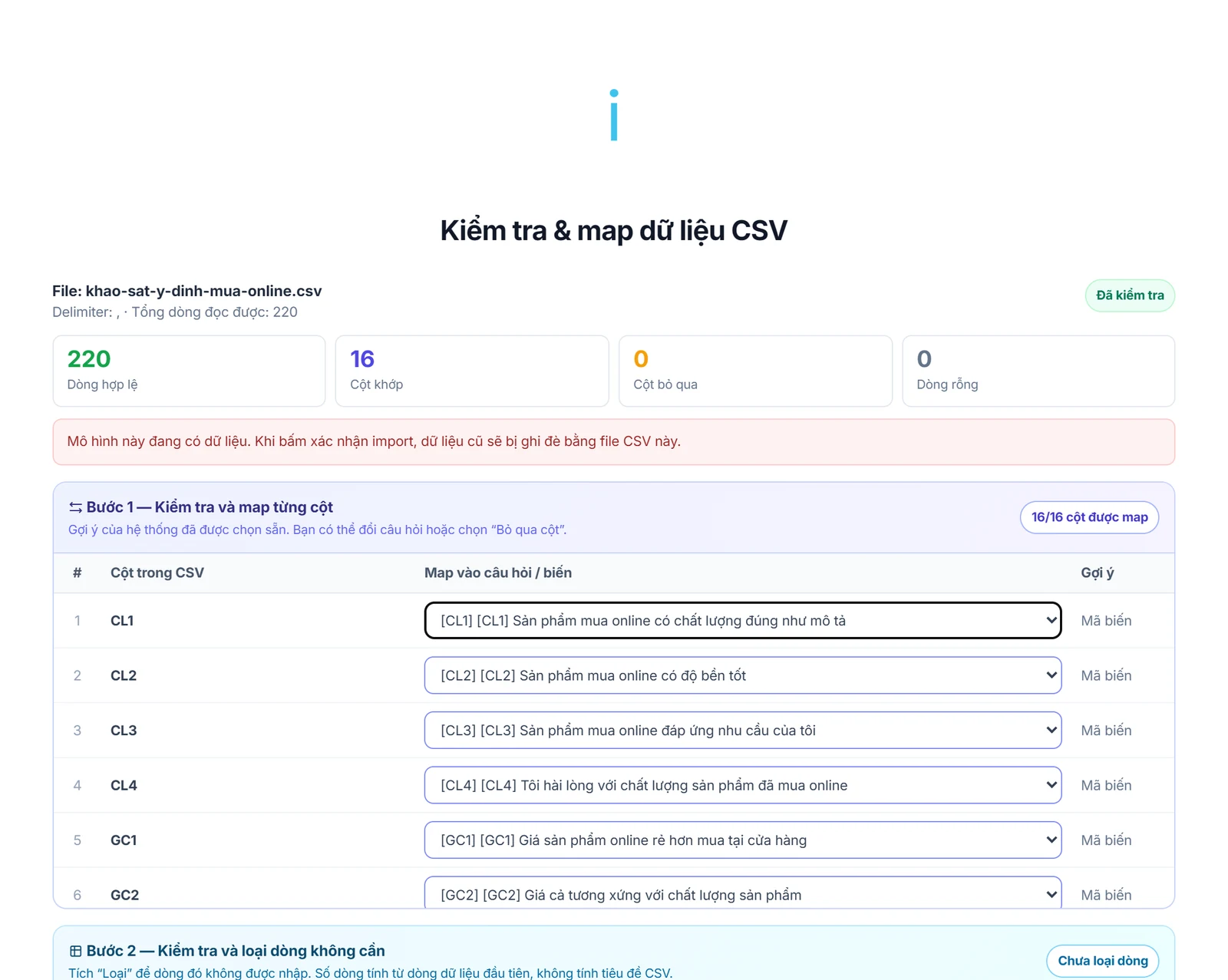
    Check and match each CSV column to a question or variable in the model
    Check and match each CSV column to a question or variable in the model
  3. 3

    Confirm the checks

    Fix missing columns or invalid values before saving the data set.
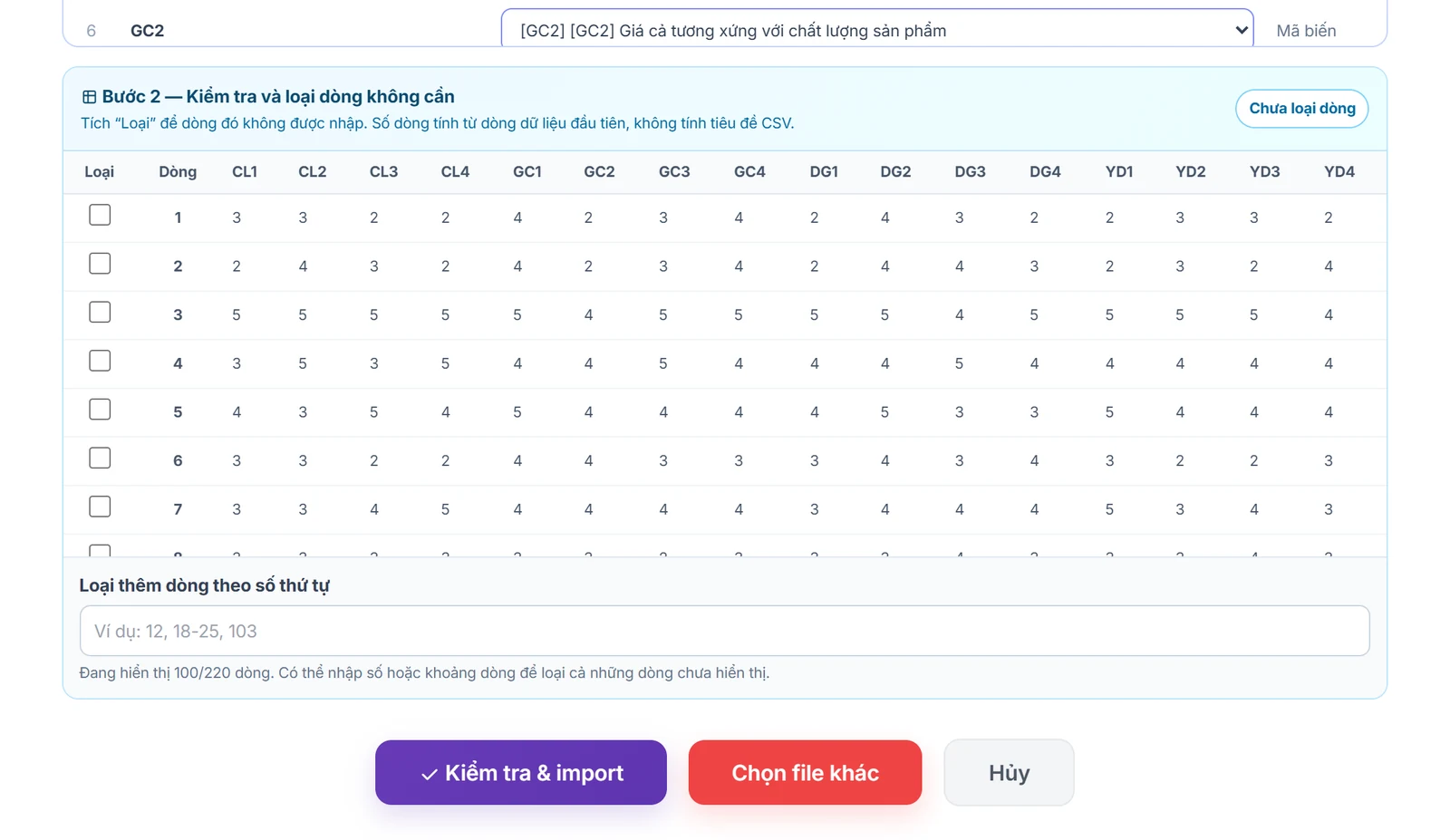
    Look at the data, drop unneeded rows, then press Check & import
    Look at the data, drop unneeded rows, then press Check & import

What you need

  • The file must be a valid CSV with a header row.
  • Choice codes or values must fit the mapped questions.

Limits to know

  • Google Sheets or Excel XLSX files are not imported directly.
  • Importing never turns bad data into data that passes the tests; errors are reported for you to handle.
Quick answers

Frequently asked questions

Yes, after downloading the sheet as CSV. This workflow does not connect to Google Sheets directly.
Choose the right question for each column or skip it on the preview screen. The mapping is checked again before the data is written.
Yes. Tick the rows shown or enter row numbers and ranges, e.g. 12, 18-25, to leave them out of the import.
No. It checks and reports problems so the original data set is never changed silently.
100 Credit for new accounts

Start with your form

Import, set up and see the cost before running.
Create a free account