Skip navigation
  1. Home
  2. Features
  3. Fix submit times in the Sheet
Tools and apps

Edit Google Form timestamps: change the timestamps in the response Google Sheet

A free tool that reads the "Timestamp" column in the response Google Sheet, recreates submit times for the responses you choose in a new time range and writes only to that column. Answers stay unchanged.
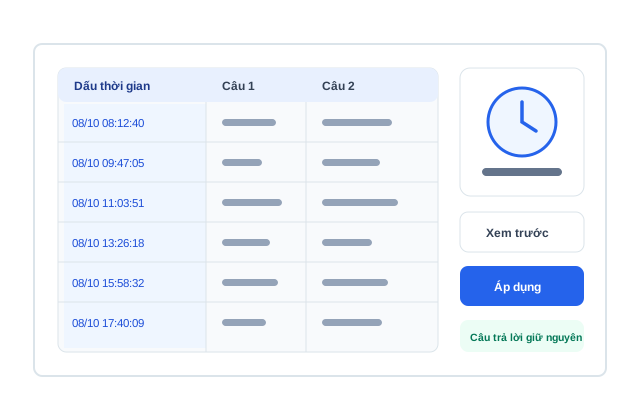
Fix Sheet timestamps illustration

Quick facts updated

Cost
Free
What it changes
Only the "Timestamp" column of the chosen responses
Limits
Up to 20.000 rows; 40 requests/minute
What you need
Sheet shared as "Anyone with the link – Editor"
Not changed
The original submit times stored in Google Forms
See it in the product

Preview every time before writing to the Sheet

The tool shows the old and new times side by side for you to check before writing. The 2-minute 4-second video below is recorded on the real app.

0 VND Free
20.000 Max rows
10 minutes Preview expiry
Paste the Sheet link Pick responses Preview Apply
Only the Timestamp column is updated
What it does

What the tool does and doesn't do

Paste the link of the Google Sheet with the responses; the tool finds the right tab and Timestamp column, lets you choose the responses to change and a new time range, then creates ascending times from the oldest to the newest response. You preview every change before pressing Apply. Note: editing the Sheet does not change the original submit times Google Forms keeps in its Responses tab; use the tool only on data you are allowed to edit, e.g. cleaning test data or reordering responses typed in from paper surveys.

Choose All responses, a range (e.g. responses 20 to 80) or several separate responses.
Create times Within a range (start – end) or with a Gap per response (minimum – maximum seconds).
Even or Natural random rhythm; times are always in ascending order.
At night: Normal all day, Pause 22:00–07:00 or Much less at night.
Preview changes before writing; the preview expires after 10 minutes and is dropped if the Sheet gets new responses.
Up to 20.000 rows; only the chosen time cells are updated.
How it works

How to use Fix submit times in the Sheet in 3 steps

Nothing is written to the Sheet until you preview and press Apply changes.

  1. 1

    Connect the response sheet

    Share the Sheet as "Anyone with the link – Editor", go to Tools → Fix submit times in the Sheet and paste the link.
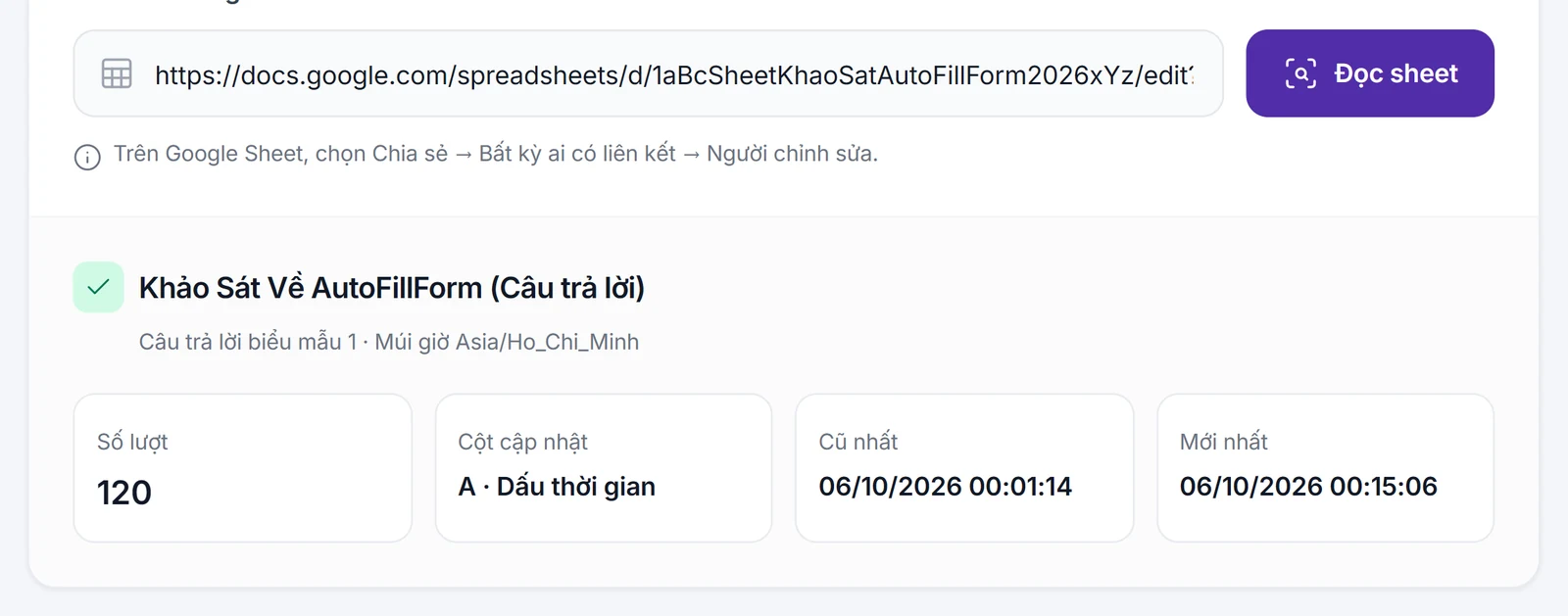
    Paste the response Google Sheet link and the Timestamp column is read
    Paste the response Google Sheet link and the Timestamp column is read
  2. 2

    Choose responses and time range

    Choose the responses to change, the time method, the spread rhythm and the night behaviour.
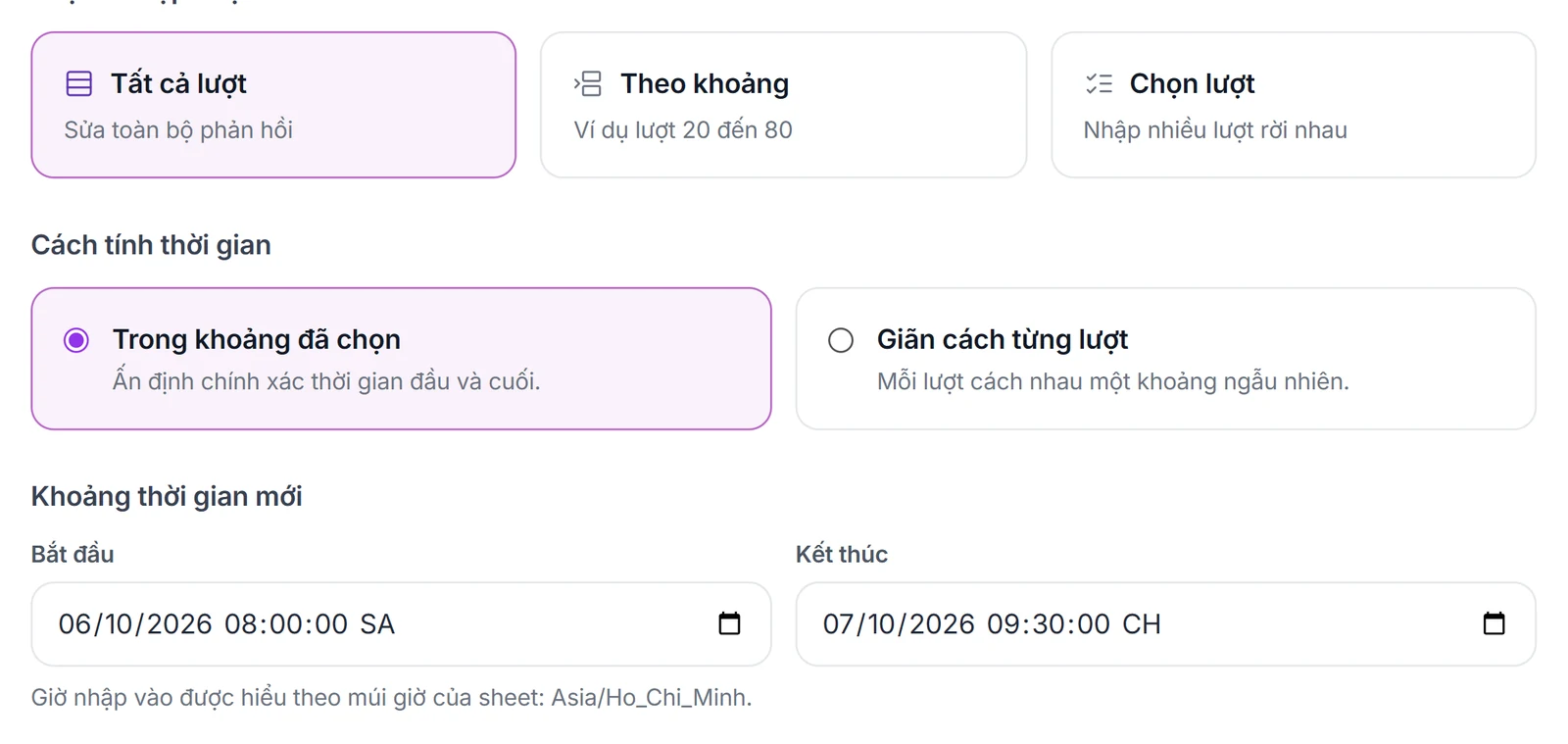
    Choose the responses to change, the method and the new time range
    Choose the responses to change, the method and the new time range
  3. 3

    Preview, then apply

    Press "Preview changes", check the new times, then press "Apply changes".
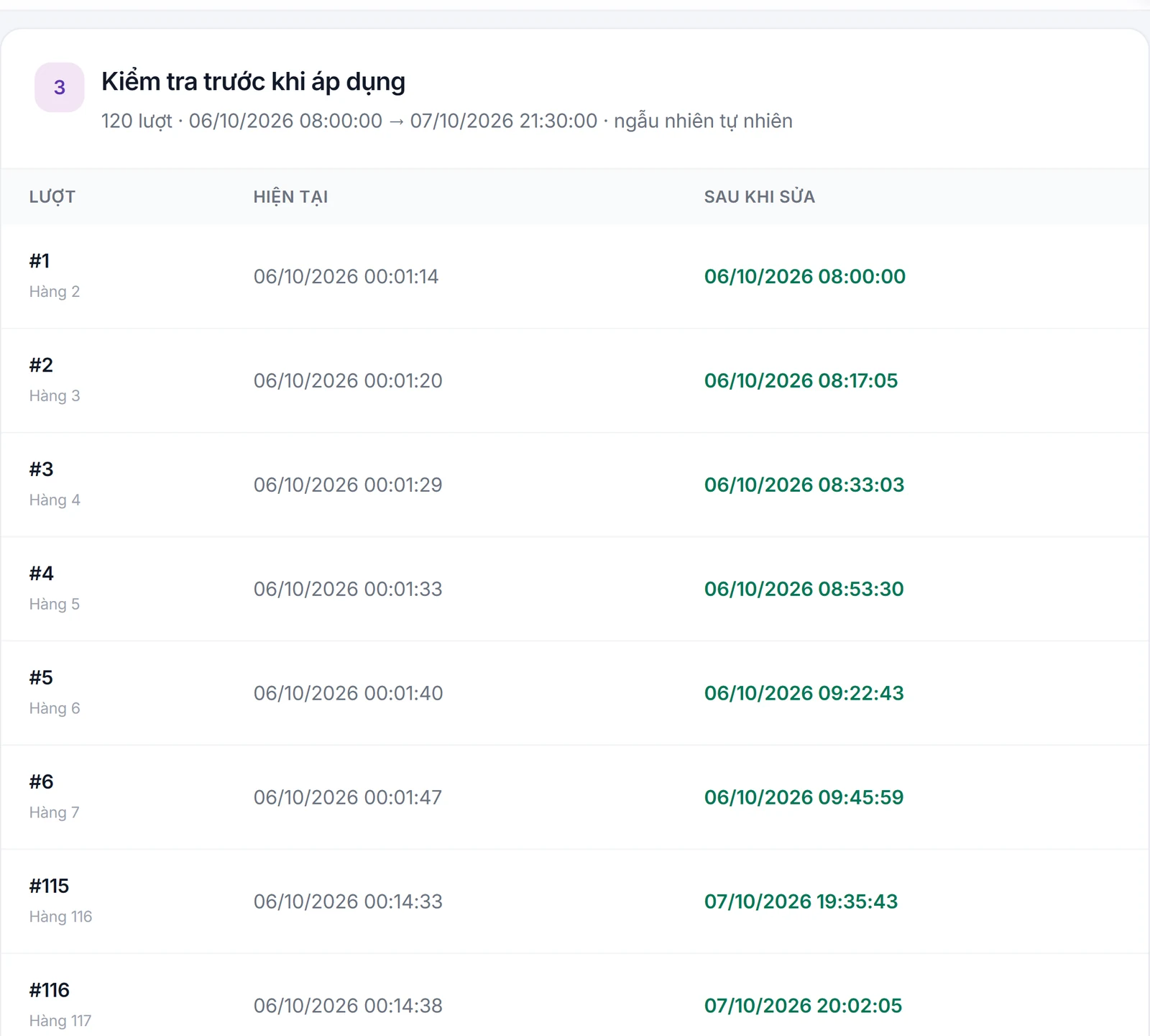
    Preview each response's old and new time before applying
    Preview each response's old and new time before applying

What you need

  • A Google Sheet with a "Timestamp" column (a Sheet linked to a Google Form).
  • The Sheet is shared with edit access for people with the link while editing; you can turn it off afterwards.
  • Sign in to an AutoFillForm account (free).

Limits to know

  • The original submit times in Google Forms are not changed, only the values in the Sheet.
  • Limited to 40 requests a minute; if the Sheet changes after the preview, preview again.
Quick answers

Frequently asked questions

No, it is free for AutoFillForm accounts.
No. The tool only writes to the Timestamp column of the responses you choose; answer columns stay as they are.
So the tool can read and write the Timestamp column. Once applied, you can change the sharing back.
No. Google Forms keeps the original submit times in its Responses tab; the tool only edits the Google Sheet data.
100 Credit for new accounts

Start with your form

Import, set up and see the cost before running.
Create a free account