How to build a proper Google Form survey for research: from questionnaire to testing
A step-by-step guide to building a Google Form questionnaire for a thesis or research, from choosing scales to clean data in Google Sheets and SPSS.
Quick summary
- Plan first: research objectives, constructs, then items adapted from validated scales (translated and back-translated).
- Standard structure: introduction and consent, screening questions, construct blocks, demographics at the end, thank-you message.
- Linear scale and Rating export numbers; Multiple choice, Multiple choice grid and Checkboxes export text, so they need coding before SPSS.
- Branching can only be set on Multiple choice and Dropdown; each branch must be tested with test responses.
- Delete all test responses in the form and in Google Sheets before sending the real link.
Plan before opening Google Forms
A common mistake when looking up how to build a Google Form survey is opening Google Forms and typing questions right away. In quantitative research the questionnaire is the model's measuring instrument, so follow this order:
- Research objectives and questions: what you need to measure to answer which question.
- Construct: each variable in the model, e.g. "Satisfaction" or "Repurchase intention", clearly defined.
- Observed item: adapted from validated scales, with a source for each item. Each construct should be measured by several items so reliability can later be checked with Cronbach's Alpha.
- Sample size and population: decide in advance who is surveyed and how many responses you need (see how to calculate sample size).
If the original scale is in English, translate it, have an independent person back-translate it into English, compare with the original to fix shifts in meaning, then adapt the wording to the local context through group discussion or expert opinion (Nguyễn Đình Thọ, 2011).
The structure of a proper Google Form questionnaire
A research questionnaire in Google Forms usually has five parts in this order:
- Title and introduction (the form description): who is running it, the research purpose, estimated time, anonymity and confidentiality, voluntary participation that can stop at any time, contact details. Right after that comes the required question "Do you agree to take part in the survey?"; choosing "No" goes straight to submitting the form.
- Screening questions (screening): keep only the right people, e.g. "In the past 6 months, have you bought anything on an e-commerce marketplace?".
- Construct blocks: one section per construct, easy and familiar content first.
- Demographics (gender, age, income…) near the end. Dillman et al. (2014) advise that the first question relate directly to the topic to create interest, leaving personal and sensitive questions for later.
- Confirmation message: thanks and how to get in touch if respondents have questions.
12 question types in Google Forms and their exported data
When choosing a question type, think of the data column that will appear in Google Sheets: SPSS needs numbers, but many question types export text.
| Question type | When to use | What the exported data looks like |
|---|---|---|
| Short answer | Exact age, years of experience, short information | Text; only guaranteed numeric with Number validation turned on |
| Paragraph | Open questions, feedback | Text (long) |
| Multiple choice | One choice: gender, age group, screening; supports branching | Text (answer labels) |
| Checkboxes | Several choices: shopping channels used | Text, several answers joined by commas in one cell |
| Dropdown | Long lists: province, field of study; supports branching | Text (answer labels) |
| File upload | Rarely used in surveys; forces respondents to sign in to Google | A link to the file on Google Drive |
| Linear scale | Each Likert item 1–5 or 1–7 | Number |
| Rating | Rating with stars, hearts or thumbs | Number |
| Multiple choice grid | Many items sharing the same answers | Text (column labels), each row in its own column |
| Checkbox grid | Several answers per row | Text, several labels joined by commas |
| Date | Date of service use, date of birth | Date |
| Time | A time or a duration | Time |
Text columns must be coded as numbers before analysis. A common mistake is using Transform → Automatic Recode in SPSS: it numbers alphabetically, so "Bình thường" (Neutral) may become 1 and "Hoàn toàn không đồng ý" (Strongly disagree) 3. Checkboxes must be split into several 0/1. variables. For Likert items, a Linear scale per question gives numbers directly; the pros and cons of each way are in the article Likert scales in Google Forms.
Sections, branching, required questions and response validation
Sections and branching
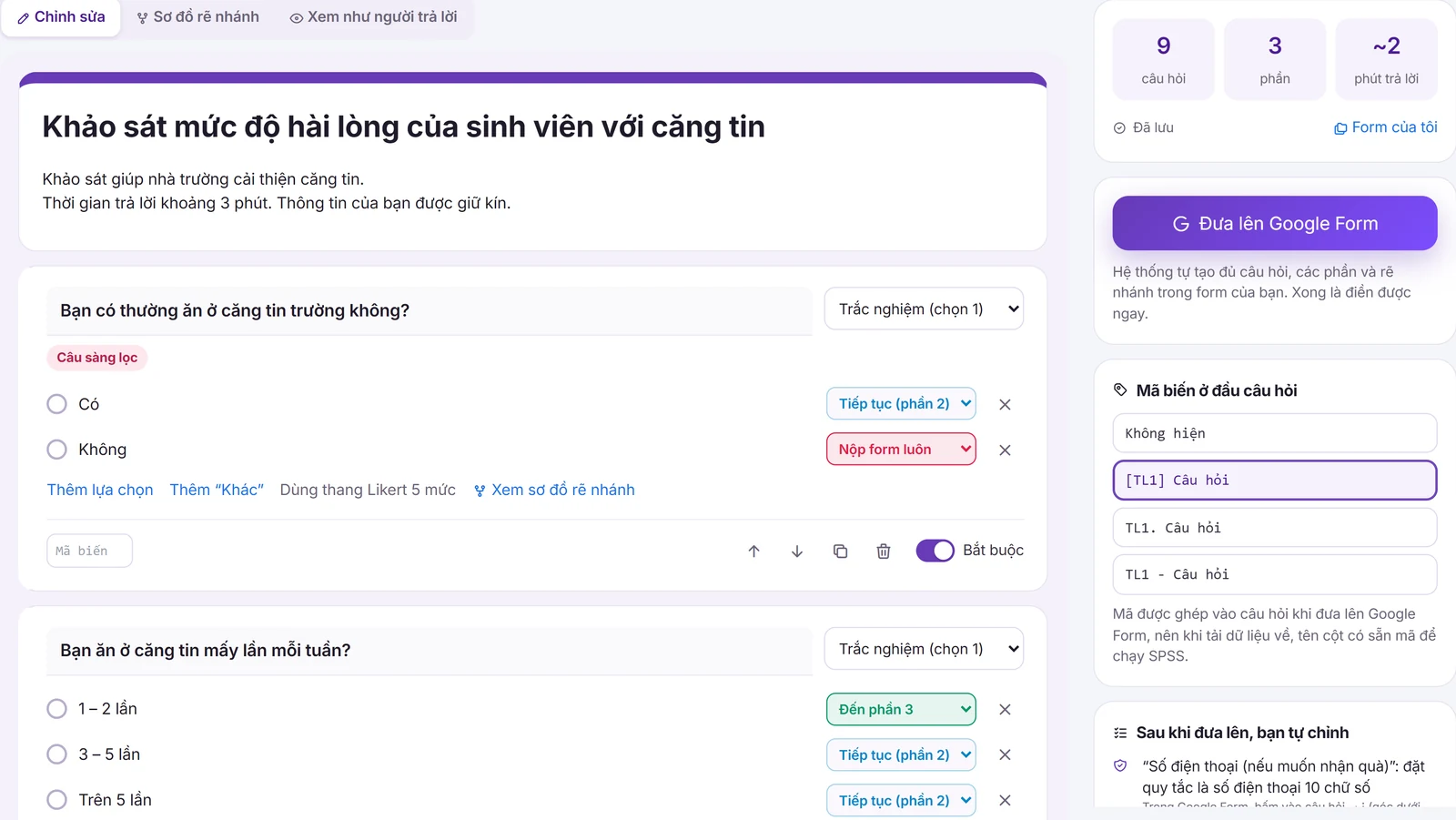
Click the Add section icon on the toolbar to split the questionnaire into pages, making it less long on phones. Branching can only be set on Multiple choice and Dropdown: click ⋮ → Go to section based on answer , then choose the target section or Submit form (Submit form) for each answer (Google, n.d.).
A common mistake: branch A (students) is in section 3, branch B (workers) in section 4. If you don't set "After section 3, go to section 5" at the end of section 3, people on branch A will also answer section 4.
Required
Turn on Required for every scale item to avoid missing data. For sensitive questions such as income, add a "Prefer not to say" answer instead of forcing respondents.
Response validation
Tap ⋮ → Response validation to block bad data from the start:
- Age:
Number → Between18 and 60. - Email:
Text → Email(Text → Email). - Open questions:
Length → Maximum character count, e.g. 500. - Checkboxes:
Select at most3 answers.
Key settings and linking Google Sheets
| Settings | Where | Recommendation |
|---|---|---|
| Collect email addresses | Settings → Responses | Turn off if the introduction promises anonymity |
| Limit to 1 response | Settings → Responses | Forces Google sign-in, lowering the response rate; only turn on when you really must prevent duplicates |
| Shuffle question order | Settings → Presentation | Reduces order effects, but don't turn it on if the section has screening questions or questions that must come first |
| Show progress bar | Settings → Presentation | Turn on when the form has many sections |
| Confirmation message | Settings → Presentation | Thanks and contact details |
Before collecting data, open the tab Responses and choose Link to Sheets to create a new sheet. Each question becomes a column, plus a Timestamp column; grid questions split into several columns named "Question [row]". Once real data is coming in, avoid editing questions or answers, since data before and after the change will no longer be comparable.
Question-writing rules: wrong and right examples
Wording decides measurement quality. Krosnick and Presser (2010) summarise the rules: use simple, familiar words; ask one thing per question; avoid leading and double negatives; answers must be exhaustive and not overlap.
| Error | Wrong example | Fix |
|---|---|---|
| Double-barreled question | "Staff are friendly and serve quickly." | Split into two separate items |
| Leading | "Like most students, do you find tuition too high?" | "How do you rate the current tuition fee?" |
| Double negative | "I am not someone who dislikes new products." | "I like trying new products." |
| Jargon | "The app gives me hedonic value." | "I enjoy using this app." |
| Overlapping or missing ranges | Age: 18–22; 22–25; 25–30 | Under 18; 18–22; 23–25; 26–30; Over 30 |
| Income not exhaustive | Under 5 million; 5–10 million; 10–15 million | Under 5 million; 5 to under 10 million; 10 to under 15 million; 15 million or more; Prefer not to say |
| Unbalanced answers | Very good; Good; Fairly good; Average; Poor | Very poor; Poor; Average; Good; Very good |
Testing the form before release
- Tap Preview, the eye icon, and try it on both a computer and a phone.
- Send a few test responses through every branch of the form.
- Open the linked Google Sheet: check the row count, blank columns for skipped sections, which columns are numbers and which are text; try bringing it into SPSS following the guide export Google Form data to SPSS.
- Delete test responses:
Responses → ⋮ → Delete all responses. This does not delete rows already written to Google Sheets, so delete those rows or unlink and create a new sheet. - Run a pilot testing a questionnaire with a small group from the right population; cognitive interviewing helps find misunderstood questions (Willis, 2005).
For long forms with many branches, AutoFillForm's Google Form auto filler tool can send some test responses from your settings so you can check branching and the Google Sheets → SPSS workflow. It does not get past sign-in requirements, so test before turning on the 1-response limit. Test responses are simulated data: delete them all before release and never present them as real collected data.
Checklist before sending the survey link
- Every item has a code, a scale source and a back-translated translation.
- The introduction states the purpose, estimated time, anonymity and voluntariness; there is a consent question.
- Screening questions send unsuitable people to "Submit form".
- Demographics at the end; age and income ranges exhaustive and non-overlapping.
- Scale items use question types that export numbers, or have a coding plan.
- Scale items are Required; sensitive questions have a "Prefer not to say" option.
- Response validation for age, email and text length.
- Email and 1-response settings match the anonymity promise.
- Google Sheets is linked and every branch tested.
- Test responses deleted from the form and from Google Sheets.
Frequently asked questions
References
- Dillman, D. A., Smyth, J. D., & Christian, L. M. (2014). Internet, phone, mail, and mixed-mode surveys: The tailored design method (4th ed.). Wiley.
- Krosnick, J. A., & Presser, S. (2010). Question and questionnaire design. In P. V. Marsden & J. D. Wright (Eds.), Handbook of survey research (2nd ed., pp. 263–313). Emerald.
- Willis, G. B. (2005). Cognitive interviewing: A tool for improving questionnaire design. SAGE Publications.
- Nguyễn Đình Thọ. (2011). Phương pháp nghiên cứu khoa học trong kinh doanh [Scientific research methods in business]. Labour – Social Publishing House.
- Google. (n.d.). Docs Editors Help: Google Forms. https://support.google.com/docs
The thresholds in this article are common conventions in the sources above. Check them against your supervisor's or target journal's requirements.