Moving data from Google Forms to SPSS: from a CSV file to analysis-ready data
A step-by-step guide to bringing Google Form responses into IBM SPSS without broken accents, mis-coded scales or lost rows.
Quick summary
- Prefer Link to Sheets and download Microsoft Excel (.xlsx): fewer Vietnamese font errors than CSV, and it keeps the codebook sheet too.
- Keep the original sheet, work on a copy, replace long question titles with short codes like TC1, TC2 and make a codebook.
- Don't use Automatic Recode for text Likert scales: SPSS numbers alphabetically, so "Bình thường" (Neutral) may become 1, while "Hoàn toàn không đồng ý" (Strongly disagree) gets a higher code than "Đồng ý" (Agree).
- Checkbox questions export several answers in one cell and need splitting into 0/1. dummy variables
- After importing, run Frequencies to catch out-of-range and missing values before Cronbach's Alpha.
The whole process in 6 steps
To export Google Form data to SPSS cleanly you need more than one "Download" click. Most analysis errors (skewed scales, negative alpha, garbled Vietnamese) start at data preparation. The order to follow:
- Export responses from Google Forms (CSV or via Google Sheets).
- Clean a copy: set variable codes, make a codebook, drop invalid rows.
- Import into SPSS in Unicode mode.
- Code text as numbers, split checkbox questions, reverse negative items.
- Set up Variable View.
- Check with Frequencies.
If the questionnaire is still being designed, first read how to build a proper Google Form survey: choosing the right question types from the start lets you skip most of the coding.
Two ways to export data from Google Forms
Method 1: download the CSV directly
In Google Forms, open the tab Responses, click the icon ⋮ then choose Download responses (.csv) . Google downloads a .zip with the CSV file (Google, n.d.). It is quick but only a snapshot at download time.
Method 2: link to Google Sheets and download .xlsx
Also in the Responses tab, choose Link to Sheets and create a new sheet. Every new response flows into it. When collection and cleaning are done, go to File → Download → Microsoft Excel (.xlsx) , or choose CSV if needed.
Prefer .xlsx for two reasons. First, .xlsx stores text as Unicode, so SPSS reads Vietnamese accents correctly without choosing a code page. Second, CSV only exports the open sheet, while .xlsx keeps both the data and codebook sheets. CSV still works for tools that only take CSV, as long as it stays UTF-8.
Preparing the data in Google Sheets
Keep the raw data
Never edit the sheet Google Forms writes to. Duplicate it (right-click the sheet name → Copy) and only work on the copy. When in doubt, you can always compare with the raw data.
Replace long titles with variable codes and make a codebook
Google Sheets uses the full question as the column header, which is not a valid SPSS variable name. Replace them with short codes by construct (TC1, TC2… for "Reliability"; HL1, HL2… for "Satisfaction") and create a separate sheet named codebook:
| Variable code | Full question | Scale | Value labels | Notes |
|---|---|---|---|---|
| TC1 | Staff resolve my requests on time | Likert 1–5 | 1 = Strongly disagree … 5 = Strongly agree | |
| TC4 | I often have to ask several times to get an answer | Likert 1–5 | Same as TC1 | Reverse item |
| GIOITINH | Your gender | Nominal | 1 = Male, 2 = Female, 3 = Other | |
| GOPY | Other comments (open question) | Text | Not coded | Keep as string |
Dropping invalid rows
- Test responses: delete the rows you filled in while testing the form, identified by the Timestamp before the official link went out.
- Failed screening: drop respondents who "have never used the service" if the population is existing customers. Only apply criteria written in your proposal.
- Duplicates: use
Data → Data cleanup → Remove duplicatesor in SPSSData → Identify Duplicate Cases. Only treat rows as duplicates when they are identical in every column, including open questions.
Importing into SPSS and handling Vietnamese text
Turn on Unicode mode first
Go to Edit → Options, tab Language, item Character Encoding for Data and Syntax, choose Unicode (universal character set). This option can only be changed when no data set is open. Recent SPSS versions default to Unicode, but lab computers sometimes still use the system locale (IBM, n.d.).
Importing an Excel or CSV file
Use File → Import Data → Excel for an .xlsx file, choose the data sheet (not the codebook) and tick Read variable names from first row of data. For CSV, use File → Import Data → CSV Data, with a comma delimiter and double-quote text qualifier, since open answers may contain commas. If Vietnamese text is still broken, import via File → Import Data → Text Data and choose UTF-8 encoding in the wizard, or use the syntax GET DATA /TYPE=TXT with /ENCODING='UTF8'.
Coding text answers as numbers
Question Linear scale exports numbers 1–5, so it is usable in SPSS right away. Questions using Multiple choice and Multiple choice grid export the choice text exactly, so SPSS treats them as String variables and every quantitative analysis needs a coding step. That's why the article Likert scales in Google Forms recommends Linear scale for Likert questions.
The Automatic Recode trap
Many people use Transform → Automatic Recode to save time. It numbers strings alphabetically, not by scale meaning, so the result is completely wrong:
| Answer | Automatic Recode | Correct code |
|---|---|---|
| Neutral | 1 | 3 |
| Agree | 2 | 4 |
| Strongly agree | 3 | 5 |
| Strongly disagree | 4 | 1 |
| Disagree | 5 | 2 |
The exact order may vary slightly with how SPSS sorts accented characters, but it never matches the Likert order. The usual result is an abnormally low alpha or puzzling negative correlations.
Recoding correctly
Use Transform → Recode into Different Variables with each Old Value → New Value pair, or run the syntax. Tip: name the text column TC1_TXT so the numeric variable after coding is TC1:
RECODE TC1_TXT ('Strongly disagree'=1) ('Disagree'=2) ('Neutral'=3) ('Agree'=4) ('Strongly agree'=5) (ELSE=SYSMIS) INTO TC1. * A numeric column read as a string (e.g. age). RECODE TUOI_TXT (CONVERT) INTO TUOI. EXECUTE.The strings in RECODE must match exactly, including case and accents. If TC1 has more SYSMIS cells than TC1_TXT has blanks, some choice was typed incorrectly.
Checkbox and open questions
Question Checkboxes write every choice into one cell, separated by commas, e.g. "Facebook, Zalo". Split each choice into a 0/1 dummy variable:
COMPUTE KENH_FB = CHAR.INDEX(KENH, 'Facebook') > 0. COMPUTE KENH_ZALO = CHAR.INDEX(KENH, 'Zalo') > 0. VALUE LABELS KENH_FB KENH_ZALO 0 'Not chosen' 1 'Chosen'. EXECUTE.Condition: choice names contain no commas and are not part of other choice names. Open questions (Paragraph, Short answer) should stay as strings for quoting, or be hand-coded into themes in a separate variable.
Setting up Variable View and SPSS syntax
In Variable View, at minimum set these columns correctly:
- Name: starts with a letter, no spaces, unique, at most 64 bytes, avoid ending with a full stop. Don't use Vietnamese accents: accented characters take several bytes and break easily when sharing files.
- Label: the full question, with accents.
- Values: a label for each code, e.g. 1 = Strongly disagree.
- Missing: the code for missing values (e.g. 9), if you use a code instead of leaving it blank.
- Measure: Scale for quantitative variables (age, income), Ordinal for Likert questions, Nominal for gender, occupation. This column mainly affects charts and the procedures SPSS suggests.
The reverse item (TC4) must be reversed before scoring or reliability. The syntax block below declares the information above and reverses TC4 into a new variable TC4R, keeping the original:
VARIABLE LABELS TC1 'Staff resolve my requests on time' /TC4 'I often have to ask several times to get an answer' /GIOITINH 'Gender'. VALUE LABELS TC1 TO TC4 1 'Strongly disagree' 2 'Disagree' 3 'Neutral' 4 'Agree' 5 'Strongly agree' /GIOITINH 1 'Male' 2 'Female' 3 'Other'. MISSING VALUES TC1 TO TC4 GIOITINH (9). VARIABLE LEVEL TC1 TO TC4 (ORDINAL) /GIOITINH (NOMINAL) /TUOI (SCALE). RECODE TC4 (1=5) (2=4) (3=3) (4=2) (5=1) INTO TC4R. VARIABLE LABELS TC4R 'TC4 (reversed)'. VALUE LABELS TC4R 1 'Strongly disagree' 2 'Disagree' 3 'Neutral' 4 'Agree' 5 'Strongly agree'. EXECUTE.Keyword TO is only correct when TC1 to TC4 are adjacent in the file. Save the block as an .sps file to rerun when needed.
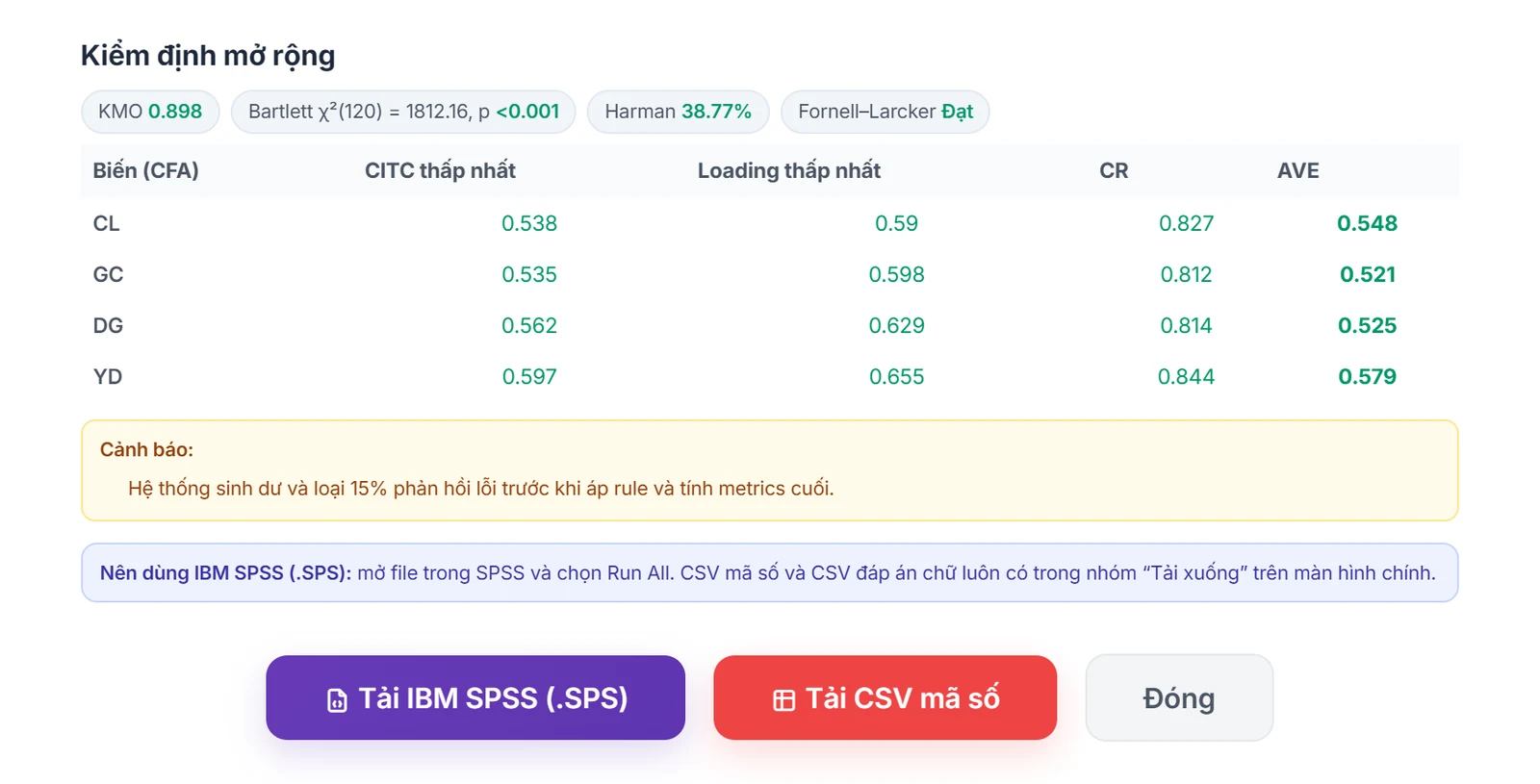
If you use AutoFillForm's SPSS module, the page SPSS data export downloads coded CSV, labelled CSV and an .sps file with variable and value labels; import CSV checks an existing CSV file against the model. Simulated data is only for testing the questionnaire and practising syntax, never a replacement for real survey data.
Checking the data after import
Before any test, run Analyze → Descriptive Statistics → Frequencies for every coded variable and read two things: out-of-range values (0, 6 or 55 on a 1–5 scale) and the number of Missing values per variable. Field (2018) and Tabachnick & Fidell (2013) both treat data screening as mandatory, since one data-entry error can skew every coefficient that follows.
FREQUENCIES VARIABLES=TC1 TO TC4 TC4R GIOITINH
  /STATISTICS=MINIMUM MAXIMUM
/ORDER=ANALYSIS.- Missing values on required questions usually mean the coding doesn't match.
- Blanks from branching are "not applicable" and must be kept apart from real missing values.
- When missingness is small and random, handling methods usually give similar results; larger amounts need a look at the missing-data mechanism (Tabachnick & Fidell, 2013). State your decision in the report.
Once the data is clean, the next step in the roadmap is testing Cronbach's Alpha for each scale (Hoàng Trọng & Chu Nguyễn Mộng Ngọc, 2008).
Checklist before analysis
- The original from Google Forms is saved and only a copy is edited.
- Column headers are short unaccented unique variable codes; there is a codebook.
- Test, failed-screening and duplicate responses dropped and the counts recorded.
- SPSS is in Unicode mode; Vietnamese text shows correctly in Data View.
- Text Likert questions are recoded by hand in the right 1–5, order, without Automatic Recode.
- Checkbox questions split into 0/1 variables; open questions kept as strings or coded separately.
- Reverse items have a new variable (TC4R) used instead of the original.
- Label, Values, Missing and Measure declared; the syntax saved as an .sps file.
- Frequencies show no out-of-range values; the row count matches the valid responses reported.
Frequently asked questions
References
- IBM. (n.d.). IBM SPSS Statistics documentation. https://www.ibm.com/docs/en/spss-statistics
- Google. (n.d.). Docs Editors Help: Google Forms. https://support.google.com/docs
- Field, A. (2018). Discovering statistics using IBM SPSS Statistics (5th ed.). SAGE Publications.
- Tabachnick, B. G., & Fidell, L. S. (2013). Using multivariate statistics (6th ed.). Pearson.
- Hoàng Trọng, & Chu Nguyễn Mộng Ngọc. (2008). Phân tích dữ liệu nghiên cứu với SPSS [Analysing research data with SPSS] (Vol. 1 and 2). Hồng Đức Publishing House.
The thresholds in this article are common conventions in the sources above. Check them against your supervisor's or target journal's requirements.